
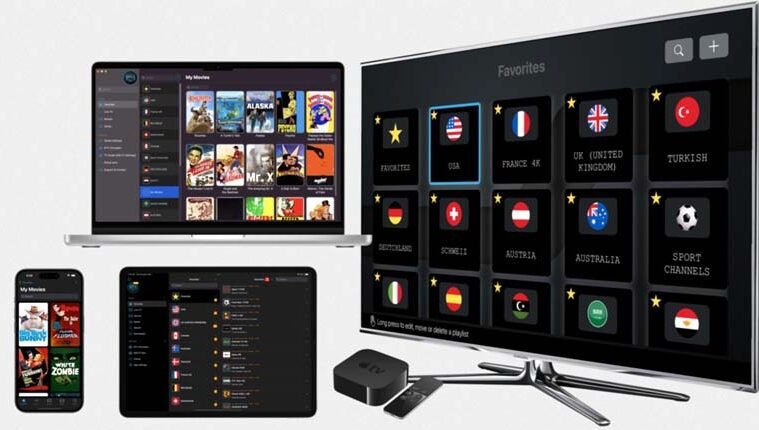
How to Install IPTV on Android TV and Smart TV
IPTV (Internet Protocol Television) is one of the most convenient ways to watch live TV channels, movies, and on-demand content directly on your television without relying on cable or satellite. Installing IPTV on Android TV and Smart TVs such as Samsung or LG is simple if you follow the right steps.
Installing IPTV on Android TV
Android TVs have built-in support for IPTV apps available via the Google Play Store, making installation straightforward.
Step-by-Step Guide:
Turn On Your Android TV
Ensure your TV is connected to the internet.Go to the Google Play Store
Use your remote to open the Play Store app.
Search for an IPTV player (recommended: IPTV Smarters Pro, TiviMate, or GSE Smart IPTV).
Download and Install IPTV Player
Click Install to download the IPTV app onto your TV.
Launch the IPTV App
Open the installed IPTV app.
You’ll be asked to log in using either M3U playlist URL or Xtream Codes (username, password, and server URL) provided by your IPTV service provider.
Load Channels and VOD
Enter your details carefully.
The app will fetch all channels, movies, and series.
Start Watching IPTV
Navigate through live TV, movies, and catch-up sections using your remote.
🔑 Pro Tip: If you want the smoothest experience, connect your Android TV to the internet via Ethernet cable rather than Wi-Fi to reduce buffering.
Installing IPTV on Samsung or LG Smart TV
Unlike Android TVs, Samsung and LG Smart TVs do not run Android OS. Instead, they use Tizen (Samsung) and WebOS (LG), which require IPTV apps from their respective app stores.
Step-by-Step Guide for Samsung Smart TV (Tizen OS):
Turn On Your Samsung Smart TV
Connect your TV to a stable internet connection.Open the Samsung App Store
Press the Home button on your remote.
Navigate to the Apps section.
Search for IPTV Apps
Recommended apps: Smart IPTV (SIPTV), SET IPTV, or SmartOne IPTV.Download and Install IPTV App
Select your chosen IPTV app.
Click Install.
Activate the App
Most apps will show a MAC address on screen.
Visit the IPTV app’s activation website on your phone or PC.
Enter the MAC address and upload your IPTV provider’s M3U link.
Restart the TV & App
Reopen the app.
Your IPTV channels will now load automatically.
Step-by-Step Guide for LG Smart TV (WebOS):
Turn On Your LG Smart TV
Ensure your TV is connected to Wi-Fi or wired internet.Go to LG Content Store
Press the Home button on your remote.
Navigate to LG Content Store.
Search for IPTV Apps
Popular choices: Smart IPTV, SET IPTV, or SS IPTV.Download and Install IPTV App
Select the IPTV app and install it.
Configure IPTV Service
Open the IPTV app.
Copy the MAC address displayed on your screen.
Go to the app’s activation website on a computer or mobile.
Upload your IPTV provider’s M3U playlist or Xtream Codes using your TV’s MAC address.
Enjoy IPTV Streaming
Restart the IPTV app on your LG TV.
Channels and on-demand content will be ready.
Recommended IPTV Apps for Android TV & Smart TVs
IPTV Smarters Pro – User-friendly, supports multi-screen.
TiviMate – Best for Android TV, advanced interface.
Smart IPTV (SIPTV) – Works well on Samsung and LG TVs.
SET IPTV – Reliable app with smooth performance.
GSE Smart IPTV – Flexible app supporting many formats.
Troubleshooting IPTV Installation Issues
App Not Found: Sideload the APK via USB (Android TV only).
Channels Not Loading: Double-check the M3U or Xtream Codes credentials.
Buffering: Switch to a wired internet connection or use a VPN to avoid ISP throttling.
App Expired (Samsung/LG): Some apps like Smart IPTV require a small one-time activation fee.
Final Thoughts
Installing IPTV on Android TV is quick and easy with apps from the Google Play Store, while Samsung and LG Smart TVs require activation using their app stores and provider M3U links. With the right IPTV service and app, you can enjoy thousands of live channels, movies, and premium sports directly on your TV with smooth streaming.